Affiliate Disclosure: This page contains affiliate links to products selected for practical fit. When you purchase through these links, we may earn a commission at no additional cost to you. Recommendations are based on the registry's stated features, price, level, pros, cons, and best-for labels. We do not imply hands-on testing without an explicit page-level record. See our complete Tools Guide for comparison notes and selection criteria.
Setting Up Procreate for Calligraphy Success
Procreate ships with illustration defaults. Calligraphers need tighter control—custom pressure curves, higher DPI canvases, and gesture shortcuts that respect lettering rhythm.
Digital pointed pen practice depends on both the Pencil and the brush. Begin with the defaults, then change one control at a time so you can see what it does.
This tutorial covers canvases, smoothing, and practice layers for modern calligraphy and Copperplate-inspired practice. Menu guidance is checked against the Procreate Handbook, not a hands-on device session; labels can vary by app version.
Step 1: Create Custom Canvas Presets
Pixel dimensions affect export size and available layers. These are example canvas sizes, not requirements for every lettering project:
Instagram Square (Daily Practice & Social)
Open the canvas menu with +, then open the custom canvas controls and enter:
- Width: 2048 px
- Height: 2048 px
- DPI: 300
- Color Profile: sRGB IEC61966-2.1
Tap Create. At 300 DPI, 2048 pixels is about 6.8 inches. Social platforms may resize or compress uploads; check a posted sample rather than assuming it stays unchanged.
A4 Print (Client Work & Portfolio)
Create a new canvas with these specs:
- Width: 2480 px
- Height: 3508 px
- DPI: 300
- Color Profile: Ask your print provider which supported profile to use.
This approximates A4 at 300 DPI. Check the layer limit shown for your device and canvas. Ask the print provider whether bleed or different dimensions are needed.
Practice Drills (Low-Res Speed)
For warm-up drills and throwaway sketches:
- Width: 1500 px
- Height: 1500 px
- DPI: 150
- Color Profile: sRGB
Smaller pixel dimensions can leave room for more layers. Use a larger canvas if you may later print the practice at a larger size.
Step 2: Adjust Pressure Curves for Nib Simulation
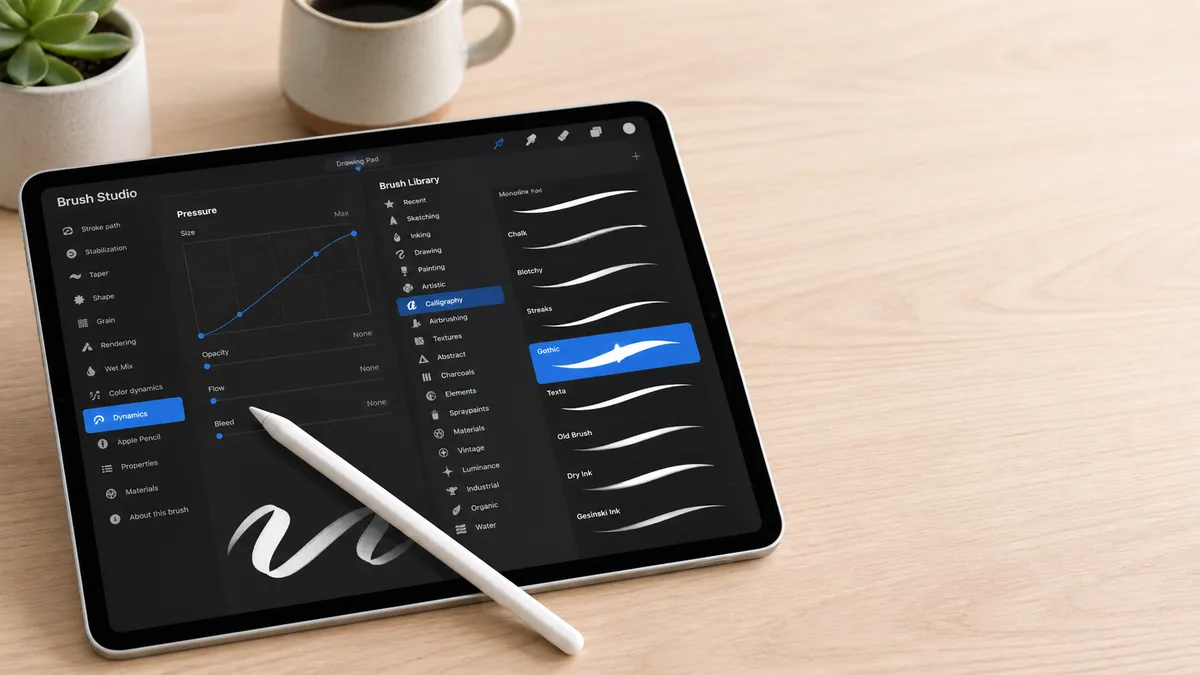
Pressure response depends on a pressure-sensitive Pencil and the brush's size and opacity settings. A global pressure curve alone does not guarantee thin upstrokes or shaded downstrokes.
Open any canvas. Tap Actions (wrench icon) → Prefs → Pressure and Smoothing → Pressure Curve. You'll see a diagonal line from bottom-left to top-right.
For Pointed Pen (Copperplate, Spencerian, Modern Calligraphy)
Keep the default curve as your starting point. Duplicate a brush before experimenting:
- Choose a brush with pressure-driven size variation.
- Draw light and moderately weighted strokes on a test layer without pressing painfully hard.
- Change one pressure setting and compare with the unchanged brush.
If light strokes become too thick, reset the curve and check brush size and pressure settings. No universal S-curve or stroke-width ratio is prescribed here.
For Brush Lettering & Monoline
Monoline lettering uses uniform stroke weight. Choose a monoline brush rather than changing the global curve to force one. For brush lettering, compare the brush's pressure response before adjusting it.
Step 3: Tune StreamLine for Smooth Curves
StreamLine smooths stroke movement and pressure response. It is separate from the Stabilization and Motion Filtering controls, even though they appear in the same Brush Studio section.
Open the Brush Library, tap your selected brush to open Brush Studio, then choose Stabilization → StreamLine. Its Amount and Pressure controls differ from global Pressure and Smoothing. These are optional trial ranges, not tested presets:
- Pointed pen styles: 50–65%. Enough to stabilize compound curves but not so much that exit strokes feel sluggish.
- Brush lettering: 40–55%. Preserve organic bounce and texture variation.
- Textured / distressed lettering: 0–30%. Let imperfection shine.
Draw the same spirals before and after a small adjustment. If curves no longer follow your intended shape, reduce the amount. Keep the original brush for comparison during flourish practice.
Step 4: Import a Practice Grid on Its Own Layer
Export a PNG from the Practice Sheet Generator for font-based tracing with horizontal lines. It has no slant-angle or millimetre x-height controls. For a particular script, use a separately ruled guide that matches your chosen exemplar.
In Procreate, use Actions → Add → Insert a file for a PNG in Files, or Insert a photo for one in Photos. Keep the grid on its own visible layer and create a drawing layer above it. Unchecking the grid's visibility checkbox hides it; it does not turn it into a Reference layer. Hide the grid before exporting finished lettering.
Lower grid opacity through the layer's blend-mode controls if it is too dark. Reference is a separate option: it supplies linework boundaries for ColorDrop fills, not automatic export exclusion. Reopen the exported image to check that only the intended artwork is visible.
Step 5: Organize Layers Like a Pro
Available layers depend on canvas pixel dimensions and the iPad. Check the limit for your document rather than relying on a generic model comparison:
- Name your layers: Tap the layer thumbnail, tap the name field, type "Main Text," "Flourishes," "Shadow Layer." Five layers named "Layer 12" is a nightmare when you need to adjust opacity or reorder.
- Group related elements: Select multiple layers (swipe right), tap Group. Collapse groups to reduce visual clutter.
- Merge finished work: Once a letterform is finalized, pinch two layers together to merge. You can't un-merge, so duplicate first if you're unsure.
- Lock layers you're not editing: Swipe left on a layer thumbnail → Lock. Prevents accidental marks on background elements.
Check Actions → Canvas → Canvas Information. Reducing DPI metadata alone while keeping the same pixel dimensions does not reduce the image's pixel count.
Step 6: Set Up Essential Gestures & Shortcuts
Procreate's default gestures favor illustration. Letterers need fast access to undo, layer management, and brush sizing without lifting the pen. Customize in Actions → Prefs → Gesture Controls:
Undo / Redo (The Most Important Setting)
Start with the documented tap gestures:
- Undo: Two-finger tap.
- Redo: Three-finger tap.
Try undo and redo on a spare layer before relying on them during a longer composition.
Brush Size & Opacity
Use the size and opacity sliders in the sidebar. Make a sample stroke after each change; size and opacity affect different parts of the result.
Eyedropper (Color Sampling)
Check the Eyedropper settings in Gesture Controls for the shortcut assigned on your device. Use it to sample a color from a visible image or stroke.
Step 7: Configure Brushes (Start with Defaults, Upgrade Later)
Procreate ships with 200+ brushes, organized into sets (Calligraphy, Inking, Artistic, etc.). For lettering, start here:
- Monoline (Calligraphy set): Uniform stroke weight, perfect for sans-serif lettering and practice drills. No pressure variation—what you draw is what you get.
- Script (Calligraphy set): Mimics flexible pointed pen with moderate pressure response. Good for modern calligraphy and casual brush scripts.
- Dry Ink (Inking set): Adds texture and grain, simulating rough paper or aged ink. Use sparingly—too much texture fights legibility.
Try the included brushes before buying more. A paid brush does not certify historical letterforms; use a labelled exemplar for that. Our Procreate brush guide separates resources by intended use.
To import a .brush or .brushset file: download to Files app, tap to open in Procreate. The brush appears in your library under the set name. Organize custom brushes into folders (swipe left on a brush → Duplicate → drag into a new set) so they don't clutter the default library.
Step 8: Export Settings for Web & Print
Choose an export format based on the recipient's requirements:
For Instagram, Social Media, Web Portfolios
Use Actions → Share → PNG. Hide the grid and, for transparency, the Background Color layer before export. Check the image afterward; sRGB is a common web choice.
For Print (Commercial, Client Deliverables)
Ask the print provider for dimensions, resolution, color profile, and format. TIFF and PSD serve different workflows; PSD can retain layers for further editing. Check the file in the receiving application before delivery.
For Vector Editing (Affinity Designer, Illustrator)
Actions → Share → PDF. Procreate rasterizes your artwork into a PDF wrapper (not true vector), but it imports cleanly into design apps for tracing or composite layouts. For genuine vector output, you'll need Affinity Designer for iPad or a desktop tool.
Quick Mockups & Proofs
JPEG works for quick client previews or low-stakes sharing. It compresses file size but discards transparency and introduces artifacts in high-contrast areas (like black ink on white). Never use JPEG for final deliverables.
Next Steps: From Setup to Mastery
You've configured Procreate for calligraphy. Now build skill through structured practice:
- Spend 10 minutes daily on basic stroke drills—ovals, compound curves, ascender loops. Use your low-res Practice canvas and the default Monoline brush.
- Use the 30-Day Calligraphy Challenge for practice prompts. Undo makes experiments reversible, but is not evidence of faster learning.
- Study traditional scripts (Copperplate, Italic, Uncial) and adapt them to iPad workflow. Use the Cursive Generator to preview how different styles handle the same phrase.
- Invest in specialty brushes once you've identified your preferred style. A $15 Copperplate brush pack will feel transformative after a month on defaults.
- If you're still choosing hardware, read our iPad buying guide—screen size and Apple Pencil model impact the long-term experience more than processor speed.
For deeper technique study, pair iPad practice with book learning. Our Best Calligraphy Books guide includes titles that translate beautifully to digital workflow—Edward Johnston's foundational text and Sheila Waters' modern calligraphy approach both apply whether you're holding a Nikko G nib or an Apple Pencil.
The Procreate Lettering hub ties together all our iPad calligraphy resources. Bookmark it as your roadmap from first canvas to selling your own brush packs.
Sources checked September 12, 2026: Procreate Handbook on layer visibility, Reference, and Brush Studio. A version-recorded device walkthrough and export check are still pending.
Top Procreate Brush Packs
Best brush packs for digital calligraphy on iPad
Modern Calligraphy Procreate Brush Pack
Curated brush packs designed for modern, bouncy calligraphy in Procreate. These brushes mimic the flex of a pointed pen …
Copperplate Procreate Brush Pack
Brush sets that emulate pointed-pen behavior for digital Copperplate and Engrosser's Script practice. Ideal for studying…
Monoline Procreate Brush Pack
Even-weight brushes that produce a uniform line at any pressure, perfect for monoline lettering, signatures, and modern …
Free Procreate Starter Brushes
A starter set of free brushes — including Procreate's built-in Calligraphy and Inking libraries plus free sampler brushe…
We may earn a commission when you buy through these links. See all recommendations →