Affiliate Disclosure: This page contains affiliate links to products selected for practical fit. When you purchase through these links, we may earn a commission at no additional cost to you. Recommendations are based on the registry's stated features, price, level, pros, cons, and best-for labels. We do not imply hands-on testing without an explicit page-level record. See our complete Tools Guide for comparison notes and selection criteria.
What Is Procreate Lettering?
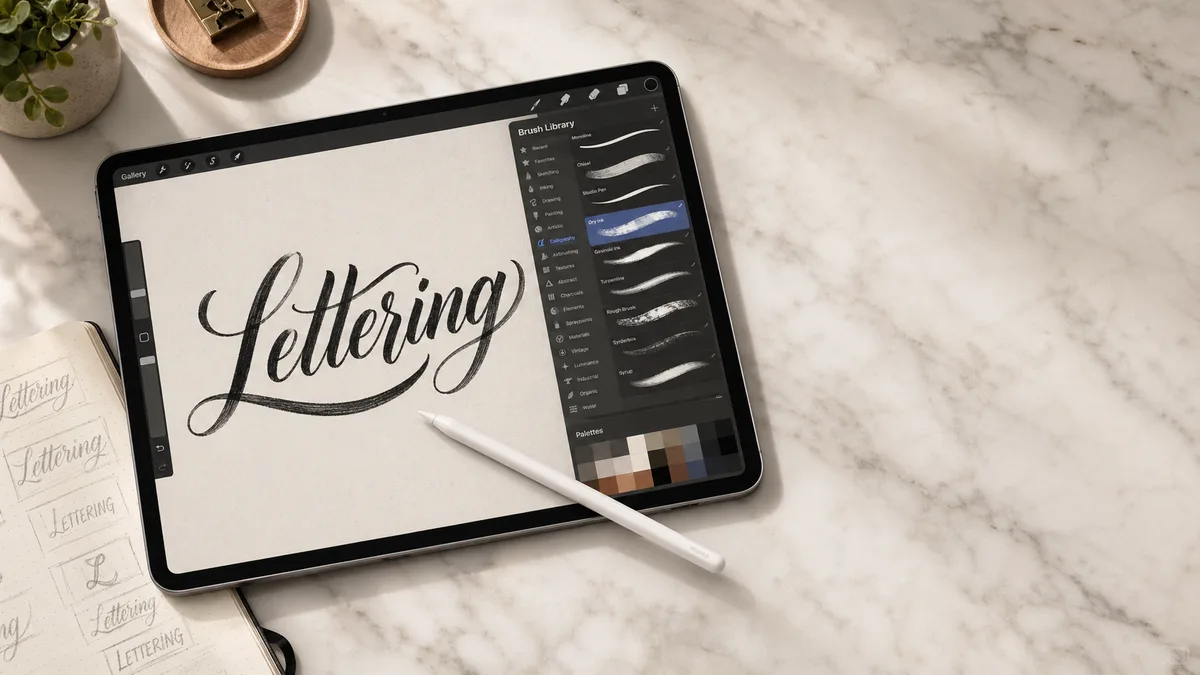
Procreate lettering is the practice of creating hand lettering, calligraphy, and brush scripts on an iPad using the Procreate app and an Apple Pencil. Unlike traditional analog calligraphy with dip pens and ink, digital lettering gives you instant undo, layered compositions, and pressure-sensitive brushes that mimic real nibs—all without the mess.
An iPad lets you try lettering without bottled ink or drying time. Use Copperplate drills as a shape reference, while remembering that a digital brush and a metal nib respond differently.
Setting Yourself Up
Digital calligraphy rests on three decisions: your device, your app setup, and your brushes. Get these right and you'll spend more time lettering, less time troubleshooting.
1. Choose Your iPad and Apple Pencil
The iPad (A16), starting at 128GB, supports Apple Pencil USB-Cfor monoline lettering, but that Pencil has no pressure sensitivity. For pressure-driven strokes, the A16 supports Apple Pencil (1st generation) with the required USB-C adapter. The iPad Air M3 11-inch 128GB supports pressure-sensitive Apple Pencil Pro, as does the 13-inch 256GB iPad Pro M4 . Pencil and app prices are separate from the iPad. Check current offers for the exact configuration.
Apple Pencil matters more than the iPad model. The Apple Pencil Pro supports pressure, barrel roll, and squeeze on compatible iPads. USB-C Pencil supports tilt but cannot provide pressure-controlled stroke variation. Read our source-linked comparison in Best iPad for Calligraphy.
2. Set Up Procreate for Lettering
Out of the box, Procreate's defaults favor illustration. Calligraphers need tighter control: adjusted pressure curves, higher DPI canvases, and custom gesture shortcuts. A proper setup saves hours of frustration—strokes respond predictably, layers stay organized, and export presets remember your settings.
Our Intro to Procreate Calligraphy tutorial covers canvas dimensions (2000×2000px at 300 DPI for Instagram squares, 2480×3508px for A4 print), pressure curve tuning, StreamLine settings for smooth curves, and how to import practice grids on separate visible layers, then hide them before exporting.
3. Find the Right Brushes
Procreate ships with serviceable monoline and texture brushes, but serious letterers invest in specialty packs. A good modern calligraphy brush mimics flexible pointed pen behavior—thin upstrokes on light pressure, thick downstrokes with weight. Brushes marketed for Copperplate or Spencerian may help with stroke contrast, but cannot establish historically accurate letter construction.
Free starter packs exist (search "free Procreate calligraphy brushes" on Gumroad), but premium sets like those from Peggy Dean or The Lovely Lettering Co. include texture overlays, pressure curves dialed to match real nibs, and update support. Expect to spend $8–$25 per pack. We review the top options in Best Procreate Brushes for Calligraphy.
Procreate vs. Traditional Calligraphy
Digital and analog practice use different tools. A Nikko G nib responds to paper and ink in ways a screen cannot reproduce. Procreate's undo and layers make revisions easier, but that does not establish faster learning or replace practice with a pen.
Many professionals use a hybrid workflow: sketch and refine layouts in Procreate, then execute the final piece with traditional tools or vectorize in Affinity Designer for print. The Cursive Generator and Font Pairing Assistant help bridge the gap—preview digital fonts alongside hand-lettered elements.
Techniques and Resources
Once you've nailed the basics, explore specialized styles. Monoline lettering (uniform stroke weight) is the easiest entry point—no pressure variation required. Faux calligraphy lets you add thick downstrokes by hand after sketching thin outlines, perfect for brush lettering simulation.
For deeper study, pair iPad practice with book learning. Our Best Calligraphy Books guide includes titles like The Speedball Textbook and Mastering Modern Calligraphy, both of which translate beautifully to digital workflow. Use the Letter Spacing Guide to analyze kerning, then apply those principles in Procreate by toggling on the reference grid.
Advanced users can explore advanced techniques like compound curves, exit-stroke flourishes, and ligature design—all easier to iterate on iPad than paper. Tools like Astropad Studio even let you mirror your iPad as a Wacom-style tablet for desktop design apps, though Procreate's native export to PSD or TIFF usually suffices.
Next Steps
Ready to dive deeper? Start with our step-by-step Procreate setup tutorial—it walks through every setting, from canvas presets to gesture shortcuts. Then grab brushes from our brush pack roundup and choose your hardware with the iPad buying guide.
If you're debating whether to invest in digital tools at all, explore our traditional starter kits if you want to work with ink and paper. Neither medium is a required prerequisite for the other; expect to adjust to its tools.
Top Procreate Brush Packs
Best brush packs for digital calligraphy on iPad
Modern Calligraphy Procreate Brush Pack
Curated brush packs designed for modern, bouncy calligraphy in Procreate. These brushes mimic the flex of a pointed pen …
Copperplate Procreate Brush Pack
Brush sets that emulate pointed-pen behavior for digital Copperplate and Engrosser's Script practice. Ideal for studying…
Monoline Procreate Brush Pack
Even-weight brushes that produce a uniform line at any pressure, perfect for monoline lettering, signatures, and modern …
Free Procreate Starter Brushes
A starter set of free brushes — including Procreate's built-in Calligraphy and Inking libraries plus free sampler brushe…
We may earn a commission when you buy through these links. See all recommendations →